Robot coding with no student logins
True Robotics Playground
True Robotics Playground is where students code all three True Robotics robots, from kindergarten to grade 8. They open app.truerobotics.org, pick a robot and drag blocks into a program. No student ever logs in, and no student data is collected.

How it works
One place to code every robot

Students pick their robot from six tiles. They drag blocks into a program and upload it to the robot. The address stays the same from kindergarten to grade 8. Only the blocks change.
Blocks that grow with the grade
Students sequence blocks first. Then they add loops, conditionals, sensors and the game controller.
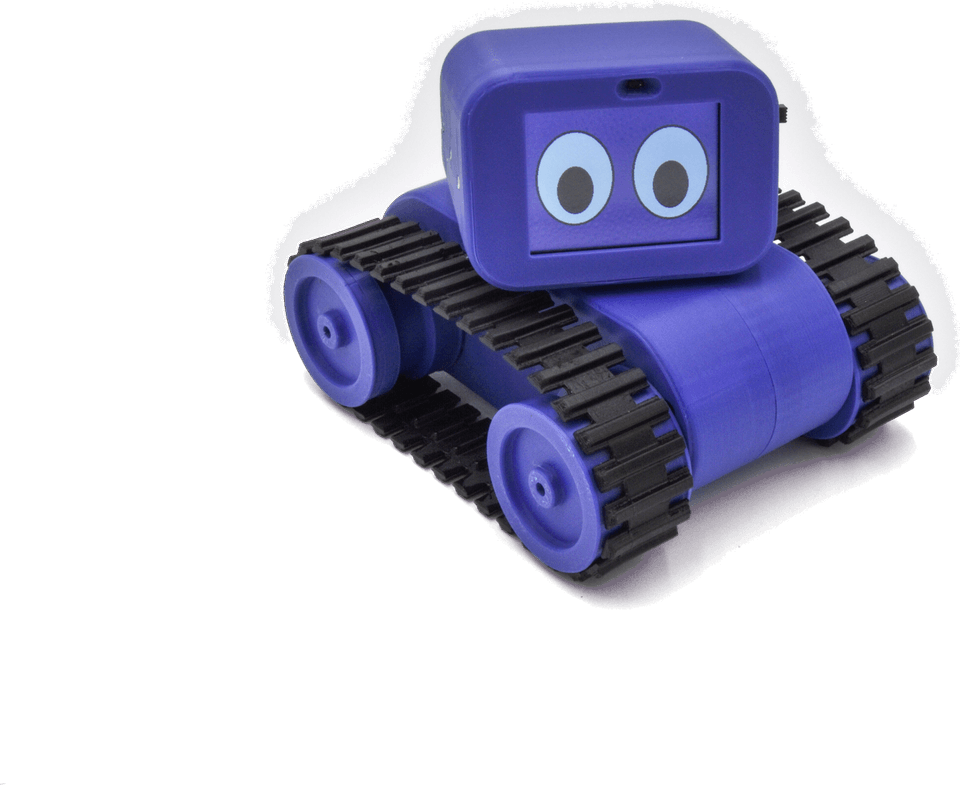
Grades K-3: Treads Robot, picture blocks with math and reading inside them
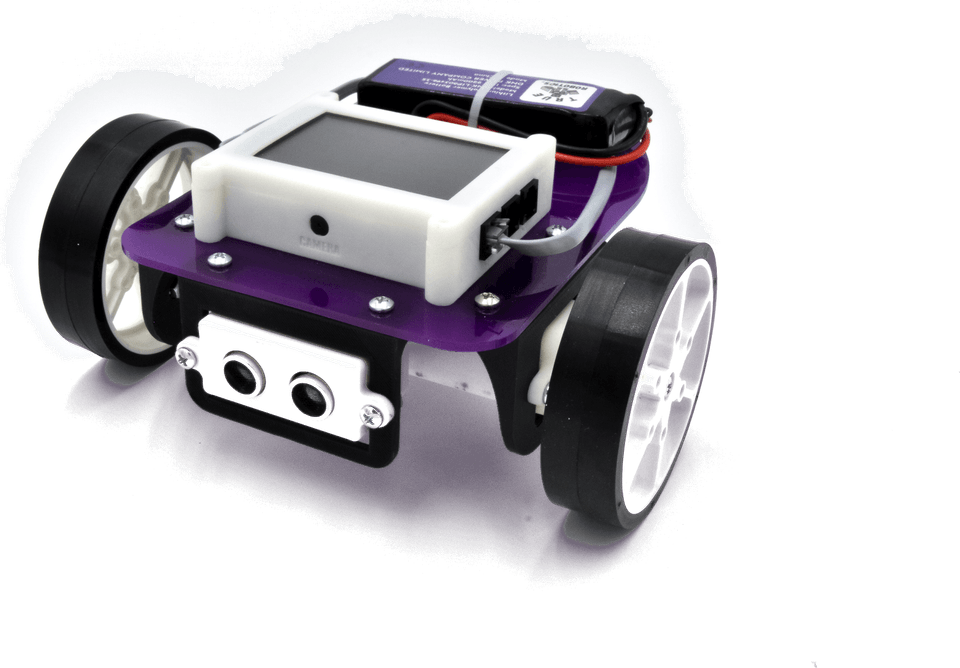
Grades 3-5: Pilot Robot Kit, text-based blocks, sensors and the game controller
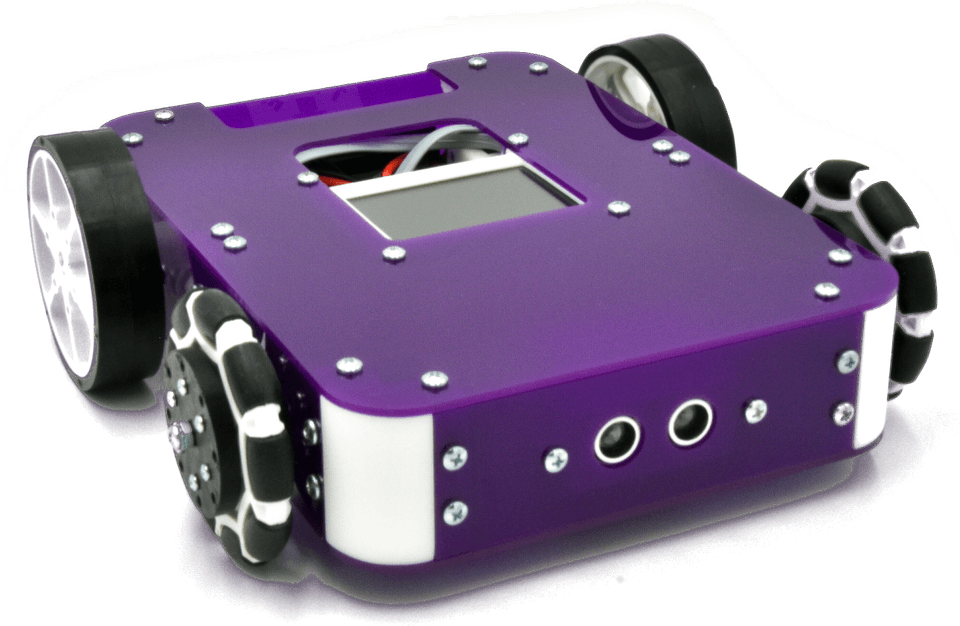
Introduction to Robotics with Axle
Grades 6-8: Axle Robot Kit, text-based blocks, two sensors and motor control


Grades K-3
Math and reading inside the blocks

The Treads Robot runs on picture blocks. Math and reading practice is built in: addition, counting by fives and tens, rhyming words. A right answer makes the robot move. A wrong one does not.
Bluetooth or USB
From the screen to the robot

Students connect over Bluetooth or USB and upload their program. It runs on the robot itself. Programs live on the robot, so one grade can build the robots and every grade can use them.
Student privacy
No student accounts

Students never type a username or password, so no lesson time goes to logging in. “We don’t collect any data on your students,” says Emily Hajko, our Director of Education. Students still save their programs, right on their own device.
Devices and setup
A device for coding is the only thing a school provides.
- Windows
- Mac
- Chromebook
- iPad
- Android tablet
K-3 classes on iPads can also use the separate Treads Playground app from the App Store.
| Device | Before the first lesson |
|---|---|
| Windows 10/11 | Install the Windows driver from the settings gear at app.truerobotics.org (administrator rights needed). |
| Mac and Chromebook | No driver install needed. |
| iPad | The software is available as a downloadable app. |
| Browser | Use Google Chrome or Microsoft Edge. The software cannot be accessed in Safari. |
Training
Learning the software

Students learn from short videos inside the lesson PowerPoints, so a hesitant teacher learns alongside the class. Teachers get a software chapter in the Learning Portal, open 24/7.
Questions about the software
How do students open the software, and does anything need installing?
Students go to app.truerobotics.org. That opens the True Robotics Playground, where they select the robot they are using: Treads Robot, Pilot Robot, Axle Robot, Starter Blocks, FlexForge Kit or Simulation. Choosing Treads opens the Treads Playground at treads.truerobotics.org. On a Mac or Chromebook nothing needs installing. Windows 10 and 11 computers need a driver, downloaded from the settings gear in the software, and installing it needs administrator rights. On iPad the software is a downloadable app. Use Google Chrome or Microsoft Edge; the software cannot be opened in Safari. The lesson videos walk students through setup on each device.
How does the coding change from Treads to Pilot and Axle?
Treads coding is very simple and icon-based. Students drag and drop blocks and connect them so the robot follows patterns: creating a square, driving across the classroom, driving around the desks. With Pilot and Axle, the coding levels up. It is still drag-and-drop, block-based coding, but the blocks use more text and fewer icons. Students learn to sequence blocks for different challenges, use conditionals and loops, program the ultrasonic and light sensors, and program the game controller. The whole progression is our scaffolded drag-and-drop software.
Do students need usernames or passwords? What student data do you collect?
Students do not need any usernames or passwords, and they never log in. That saves class time, because nobody is typing in a password, and it protects students' data: we do not collect any data on your students. Even without logging in, students can save their programs directly onto their Chromebook, so they can keep working in a later class or submit their programs to the teacher. Teachers do have accounts, which we set up together in the 30-minute intro session.
What does the school need to provide?
Just devices for students to code on, such as the Chromebooks or iPads your school already uses. The robots are compatible with any Windows, Mac, Chromebook, iPad or Android tablet. We provide everything else: the robots and robot kits with all required tools and pieces, the batteries, the chargers, double the screws you will need, the game controller for Pilot and Axle, the curriculum and the professional development.
See the software with your robots
True Robotics provides the robots and robot kits, the batteries and chargers, the curriculum and one-on-one teacher training, as one Classroom Package.